

PECOS is the Medicare enrollment system that providers and suppliers use to enroll, update records, reassign benefits, upload documents, sign applications and keep the billing information current.
The full name is the Provider Enrollment, Chain, and Ownership System. In healthcare, PECOS is not a clinical credential by itself. It is the CMS system used to manage Medicare enrollment records. If a provider wants to bill Medicare, order or certify certain services, reassign payments to a group, or keep enrollment active, PECOS is usually part of the process.
PECOS can feel simple at first because it is an online form. The difficult part is not clicking through screens. The difficult part is making sure the NPI, legal name, tax information, ownership details, practice locations, bank information, signatures and CMS identity roles all line up before the application reaches a Medicare Administrative Contractor.
Many providers also work with credentialing or billing support services such as MediBillMD because PECOS problems often affect claims, payment timing and Medicare participation. Outside help can be useful, but responsibility for accurate enrollment still stays with the provider, supplier or authorized official.
What PECOS Means In Medicare?
PECOS is the online Medicare provider enrollment management system. It lets users enroll as a provider or supplier, review information currently on file, upload supporting documents, and electronically sign and submit enrollment information online.
The official CMS page for PECOS enrollment applications also notes that PECOS is paperless, which means users generally do not need to mail paper enrollment forms when the online workflow is completed correctly.
The platform is used for several enrollment actions:
- Initial Medicare enrollment
- Enrollment updates and changes of information
- Revalidation of enrollment
- Reassignment of Medicare benefits to a group
- Ordering, certifying or referring enrollment
- Supporting document uploads
- Electronic signatures and certification statements
- Review of existing enrollment records
PECOS In Healthcare – What It Does And What It Does Not Do?
PECOS is often described as a credentialing tool, but that wording can confuse people. PECOS does not issue a medical license. It does not replace hospital credentialing. It does not decide clinical competence. It is the enrollment system used by CMS and Medicare contractors.
A provider may be licensed by a state, credentialed by a hospital, contracted with commercial payers and still not be properly enrolled in Medicare.
PECOS helps answer several questions:
- Who is the provider or supplier?
- Which NPI is being used?
- Which legal entity is billing?
- Where are services provided?
- Who owns or controls the organization?
- Who can sign for the enrollment?
- Who receives Medicare payments?
- Is the provider enrolled only to order, certify or refer?
Those questions matter because Medicare claims depend on correct enrollment. If the enrollment record is wrong, a practice can face delayed approval, rejected applications, payment holds, claim denials or problems during revalidation.
PECOS, NPI, PTAN, TIN And I&A – What Each One Means?
PECOS enrollment works only when the related identifiers and systems are understood. Many delays start because someone mixes up PECOS, NPI, PTAN, TIN and CMS I&A.
| Term | What It Means | Why It Matters |
|---|---|---|
| PECOS | Provider Enrollment, Chain, and Ownership System | The online CMS system used to submit and manage enrollment information. |
| NPI | National Provider Identifier | A 10-digit identifier required before enrollment. Individuals use Type 1. Organizations use Type 2. |
| PTAN | Provider Transaction Access Number | A Medicare-only number issued after enrollment approval. It is mainly used in communication with Medicare contractors. |
| TIN | Taxpayer Identification Number | The tax number tied to the individual or organization receiving payment. |
| CMS I&A | Identity and Access Management system | The CMS access system that controls who can log in and act for a provider or organization. |
| MAC | Medicare Administrative Contractor | The contractor that processes Medicare Part A and Part B enrollment applications. |
What Is A PECOS ID?
People often search for “PECOS ID,” but the phrase is not always used precisely. In many cases, they are really asking for one of three things: their NPI, their PECOS login access, or their Medicare PTAN.
The NPI is issued through NPPES before Medicare enrollment. The PTAN is issued by a Medicare contractor after Medicare enrollment is approved. The PECOS account is the online system access used to manage the enrollment record.
Noridian explains that a PTAN is issued once a provider or supplier is fully enrolled in Medicare and that only the NPI is submitted on claims.
They also note that PTAN use should generally be limited to communication with the Medicare contractor.
What You Need Before Starting PECOS Enrollment?
Most PECOS problems start before the actual application. A mismatch in NPPES, a pending I&A role, a missing tax document or an unsigned EFT form can delay the whole process.
Get The Right NPI First
Medicare enrollment assumes the provider or organization already has an NPI. Individual clinicians use a Type 1 NPI. Group practices, clinics and organizations use a Type 2 NPI.
CMS provider resources link directly to NPPES and the NPI Registry from the official Medicare provider enrollment portal.
Before opening a PECOS application, verify:
- Legal name is correct in NPPES
- Practice address is current
- Taxonomy is appropriate
- Type 1 or Type 2 NPI is being used correctly
- Organization NPI is not being confused with individual NPI
If NPPES is wrong, fix it first. PECOS can pull or compare data from upstream systems, and inconsistent records can create avoidable follow-up.
Know Which Medicare Enrollment Path Applies
PECOS is not one generic enrollment path. The application changes based on whether the user is an individual clinician, group, institutional provider, supplier, DMEPOS supplier or ordering and certifying practitioner.
Choosing the wrong path can create extra documentation, wrong signatures, incorrect payment setup or a rejected application.
Set Up CMS I&A Access

PECOS access is tied to CMS Identity and Access Management, called I&A. I&A controls user identity, organization relationships and who can act for a provider or supplier.
CMS published the I&A quick reference guide that explains role setup and organization access.
Important roles include:
- Authorized Official: the person legally allowed to sign and manage enrollment authority for an organization
- Delegated Official: a person approved to help manage enrollment work for an organization
- Staff or surrogate user: a person allowed to work on enrollment tasks but not necessarily sign for the organization
Shared logins are a mistake. Each person who works in PECOS should have their own access. That protects audit trails and reduces confusion when staff change.
Which CMS-855 Application Matches Your PECOS Enrollment?
PECOS is the online version of Medicare enrollment. The paper form names still help providers understand which path they are using.
| Situation | Common Form Reference | Plain-English Meaning |
|---|---|---|
| Individual clinician who bills Medicare | CMS-855I | Individual provider enrollment |
| Clinic, group practice or certain organizations | CMS-855B | Organization enrollment |
| Reassignment of Medicare benefits | CMS-855R | Links an individual provider to a group for payment reassignment |
| Electronic funds transfer | CMS-588 | Sets up Medicare payments by direct deposit |
| Institutional provider | CMS-855A | Used by many institutional providers, depending on provider type |
| DMEPOS supplier | CMS-855S | Used by Medicare durable medical equipment, prosthetics, orthotics and supplies suppliers |
| Ordering, certifying or prescribing only | PECOS ordering and certifying pathway | Allows eligible practitioners to order or certify Medicare items or services without billing Medicare directly |
Step-By-Step PECOS Enrollment

Step 1: Verify NPI And Legal Details
Start with NPPES, tax records, licenses and organization documents. The names and addresses should match as closely as possible before the PECOS application begins.
Do not wait for a contractor to point out a mismatch. Name, address, ownership and tax errors are among the easiest problems to prevent.
Step 2: Set Up I&A And Confirm Roles
Solo practitioners need access tied to their own identity and NPI. Organizations need an Authorized Official and, when appropriate, Delegated Officials or staff access.
Do not start a group enrollment unless the person submitting can see the correct organization record and has the correct role.
Step 3: Log In To PECOS
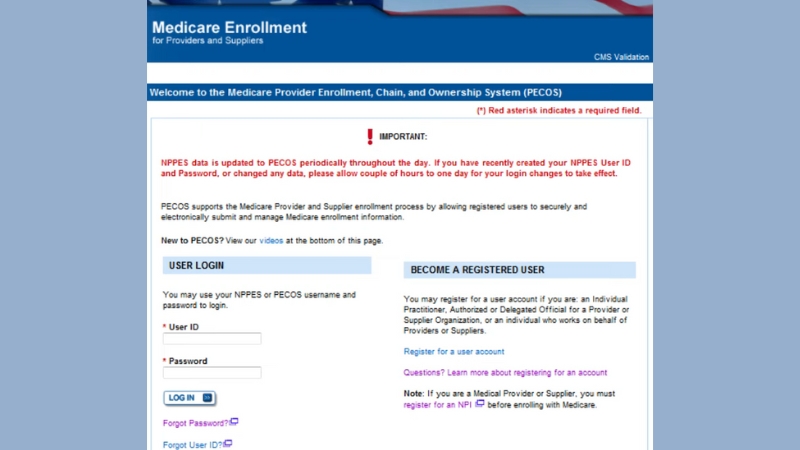
Users access PECOS through the CMS login system. The official PECOS portal states that it supports Medicare provider and supplier enrollment and lets registered users securely submit and manage enrollment information electronically.
Inside the system, users commonly choose between a new enrollment, a change to existing information, reassignment or revalidation.
Step 4: Choose The Right Application Type
This is where many mistakes begin. A solo clinician, a group practice, an institutional provider and an ordering-only provider do not follow the same path.
Before continuing, confirm:
- Provider or supplier type
- Individual or organization enrollment
- Billing or ordering-only status
- Reassignment needs
- EFT requirements
- State license and certification requirements
Step 5: Enter Practice, Ownership And Contact Information

PECOS should be treated like a data audit. The answers should match supporting documents and official records.
Have these items ready:
- Legal name for the provider or organization
- NPI and taxonomy details
- Tax ID or Social Security number when applicable
- Practice location and correspondence address
- License and certification details
- Ownership and managing control information
- Adverse legal action information when applicable
- Contact person details
- Banking information for EFT
Step 6: Upload Supporting Documents
PECOS supports document upload. Use it early. Waiting for a MAC request usually slows the application.
Documents may include licenses, certifications, ownership records, EFT documents, business records, reassignment support or application fee proof when required.
CMS Medicare Provider Enrollment guidance says PECOS requires the same information as paper forms.
Step 7: Complete PECOS Certification And Signature
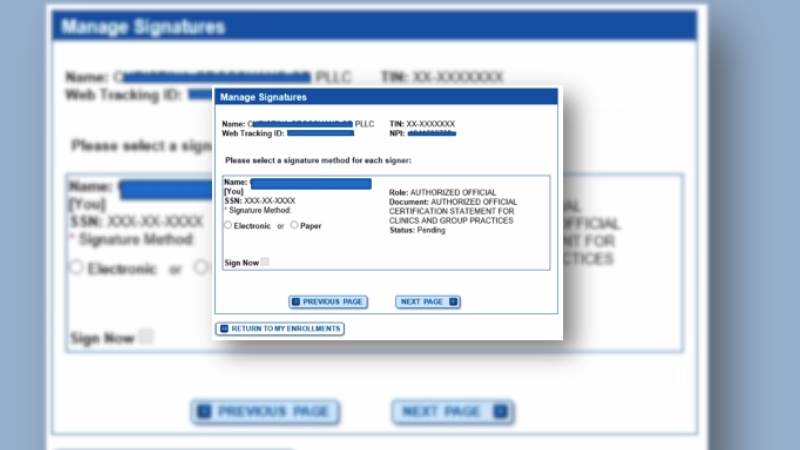
PECOS certification is the attestation step where the provider, supplier, Authorized Official or Delegated Official certifies that the enrollment information is accurate and complete.
This is not the same as a board certification or professional credential. In PECOS, certification usually means the legal certification statement tied to the Medicare enrollment application.
PECOS supports electronic signatures through the CMS e-signature workflow.
It lets authorized users complete electronic signatures for enrollment applications.
Signature rules matter:
- The correct signer must complete the certification.
- Organizations usually require an Authorized Official or Delegated Official.
- Staff cannot sign unless they have the right authority.
- An unsigned application can sit without being processed.
- A paper certification statement may be required if e-signature is not completed.
Step 8: Submit And Watch For MAC Requests
After submission, the Medicare Administrative Contractor reviews the application. CMS says MACs process all Medicare enrollment applications for Part A and Part B providers and suppliers, and that MACs are the main communication channel between providers and Medicare Fee-For-Service.
Once submitted, check email and PECOS status often. Development requests need quick response. Missing a deadline can result in rejection, which may force the provider to start again.
How Long PECOS Enrollment Takes>
PECOS processing time depends on the application type, completeness, provider category, MAC workload, site visit requirements, fingerprints, application fee requirements and whether the MAC asks for more information.
Some MACs publish general processing targets. CGS says certain web-based applications may take 45 calendar days, compared with 60 calendar days for paper in those contexts.
Novitas also publishes CMS-855 processing categories and timeframes through its provider enrollment processing guide.
These timelines are not guarantees. A clean application can move faster than a messy one. A missing signature, wrong address, bad EFT document or unresolved I&A role can delay even a simple enrollment.
2026 Medicare Enrollment Application Fee
Not every provider pays an application fee. CMS states that physicians, non-physician practitioners, physician organizations, non-physician organizations and Medicare Diabetes Prevention Program suppliers do not pay a Medicare enrollment application fee.
The fee generally applies to institutional providers and suppliers, such as DMEPOS suppliers and opioid treatment programs, when they enroll, re-enroll, revalidate or add a new practice location.
The Federal Register notice for the 2026 sets the amount at $750 for applicable institutional providers.
A practice should not assume the fee applies or does not apply. The correct answer depends on provider or supplier type and the enrollment action being submitted.
EFT And CMS-588
Medicare payments normally require electronic funds transfer setup. That is where CMS-588 fits into the process.
For providers billing Medicare directly, EFT errors can delay payment even after enrollment is approved. The legal entity, bank account, tax information and signature should match the enrollment record.
We covered the financial part of the healthcare system in our report on how medical billing is changing.
EFT checks before submission:
- Bank account belongs to the correct person or legal entity
- Routing and account numbers are correct
- Bank letter or voided check is available if required
- Correct signer completes the form
- EFT information matches the enrollment and tax records
Reassignment Of Medicare Benefits
Reassignment lets an individual provider send Medicare payment rights to an eligible group or organization. This is common when a physician, nurse practitioner or other clinician works for a group practice.
In PECOS, reassignment is not just a payroll detail. It controls where Medicare payment goes and how the provider is linked to the organization.
Before submitting reassignment, confirm:
- The individual provider enrollment exists or is being submitted.
- The group enrollment exists or is being submitted.
- Both NPIs are correct.
- Effective dates match employment or contract reality.
- The right people sign the reassignment.
Revalidation: PECOS Enrollment Does Not Stay Finished Forever
Medicare enrollment needs periodic renewal. CMS says providers and suppliers are generally required to revalidate every five years, while DMEPOS suppliers revalidate every three years. CMS can also request off-cycle revalidation.
CMS also provides a searchable tool that lets providers look up revalidation due dates. The Medicare Revalidation List posts due dates several months in advance when available.
Revalidation should be tracked before the notice arrives. A practice that changes address, ownership, bank account, managing employees or practice location should not wait for revalidation to clean up old records.
Common PECOS Enrollment Problems
Most PECOS delays are predictable. They usually come from identity, access, documents, signatures or data mismatches.
| Problem | What It Looks Like | How To Prevent It |
|---|---|---|
| NPI mismatch | PECOS details do not match NPPES or legal documents. | Review NPPES before starting and update old information first. |
| Wrong I&A role | User cannot see the organization or cannot submit. | Confirm AO, DO and staff roles before opening the application. |
| Incorrect enrollment path | Application asks irrelevant questions or misses required items. | Confirm provider type and CMS-855 equivalent before continuing. |
| Missing documents | MAC requests licenses, EFT proof or ownership documents. | Upload supporting documents during the original submission. |
| Wrong signer | Application remains incomplete or is returned for certification issues. | Make sure the provider, AO or DO signs as required. |
| EFT mismatch | Enrollment is approved but payment setup is delayed. | Match bank, tax and legal entity details before submission. |
| Slow MAC response | Application is rejected after missing development deadlines. | Monitor email and PECOS status until final approval. |
What To Do After PECOS Approval?

Approval is not the end of enrollment work. It is the point where the practice needs to verify that the record will support billing correctly.
After approval, check:
- Approval letter and effective date
- PTAN information where issued
- EFT activation
- Practice locations
- Correspondence address
- Reassignment links
- Ordering, certifying or referring status if applicable
- Revalidation due date tracking
Provider enrollment is tied to revenue cycle work. A clean Medicare record helps prevent downstream billing problems, especially when a practice grows, adds locations or hires new clinicians.
When To Update PECOS?
PECOS is not only for new enrollment. Providers and suppliers must keep Medicare enrollment information current.
Update PECOS when there is a change in:
- Practice location
- Correspondence address
- Ownership or managing control
- Legal business name
- Tax ID
- Banking information
- Authorized or delegated officials
- Provider employment or reassignment
- Licenses or certifications
- Final adverse legal actions
Some changes have strict reporting deadlines. A provider should follow CMS and MAC instructions for timing rather than waiting for the next revalidation cycle.
FAQs
Remember This
PECOS is the main online system for Medicare provider and supplier enrollment. It is used to enroll, update information, reassign benefits, upload documents, sign applications and revalidate Medicare billing privileges.
The process works best when providers treat it as a structured enrollment project, not a simple form. NPI details, I&A roles, legal names, tax records, ownership information, EFT data, documents and signatures all need to match.
The most useful rule is to fix upstream data first. If NPPES, I&A, tax records or organizational authority are wrong, PECOS will not save the application. Clean records before submission make Medicare enrollment faster, clearer and less risky.
Also Read: Maximum HSA Contribution for 2027